
You need to compare two lists and find what's different. Maybe it's last month's subscribers vs. this month's. Maybe it's two exports from different systems that should match — but don't.
Scanning them line by line? That breaks down after 20 rows. Spreadsheet formulas work, but they're slow to set up. You just want to paste, compare, and move on.
Compare Lists lets you compare two lists online in seconds — paste them in, hit Compare, and get five clear results. Everything runs in your browser with nothing sent to a server.
This guide shows you how to compare two lists step by step, what each result means, and how to handle edge cases like messy formatting and case mismatches.
Step 1: Paste or Upload Your Two Lists
To compare two lists, open Compare Lists. You'll see two input panels side by side — List A on the left, List B on the right.
You can get data in three ways:
- Paste directly — one item per line
- Upload a file — drag or click to upload
.txtor.xlsxfiles (up to 10 MB) - Paste CSV data — click the Split CSV button to automatically split comma-separated, semicolon-separated, colon-separated, or tab-separated values into individual lines
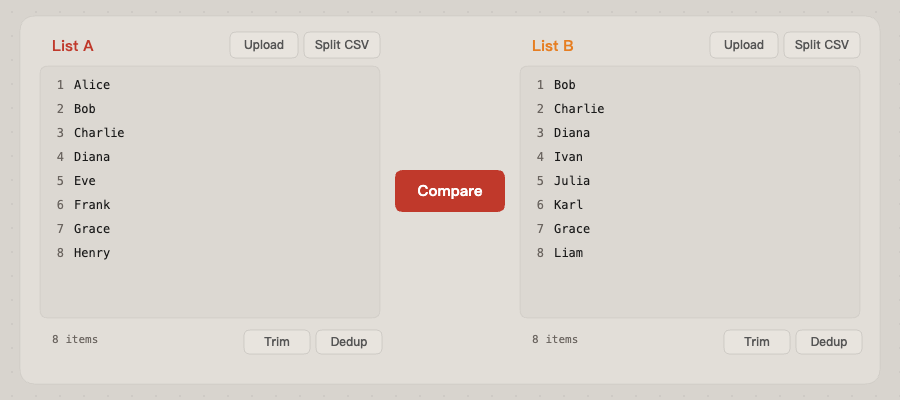
Tip: If you're exporting from Excel or Google Sheets, copy a single column and paste it directly. The tool treats each line as one item.
Step 2: Set Your Comparison Options
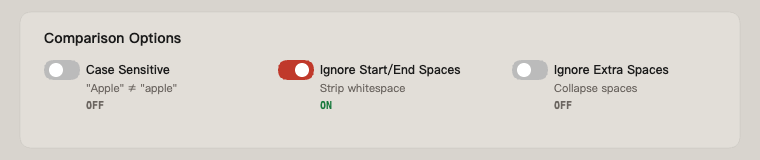
Before you compare two lists, check the options at the top. These toggles prevent the most common source of false mismatches:
| Option | What it does | Default |
|---|---|---|
| Case Sensitive | When OFF, "Apple" and "apple" are treated as the same item | OFF |
| Ignore Begin/End Spaces | Strips leading and trailing whitespace before comparing | ON |
| Ignore Extra Spaces | Collapses multiple spaces into one (e.g., "New York" → "New York") | OFF |
Text Replacement Rules
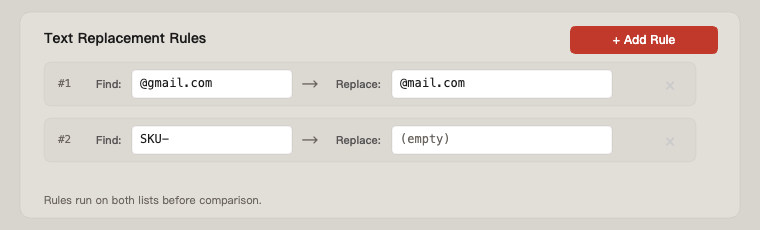
For messier data, use Text Replacement Rules to normalize entries before comparison. You can add unlimited find-and-replace rules that run on both lists before the comparison starts.
For example:
- Replace
@gmail.comwith@example.comto compare usernames regardless of domain - Remove a common prefix like
SKU-to match product codes across systems - Strip currency symbols to compare numeric values
Step 3: Read the Five Results
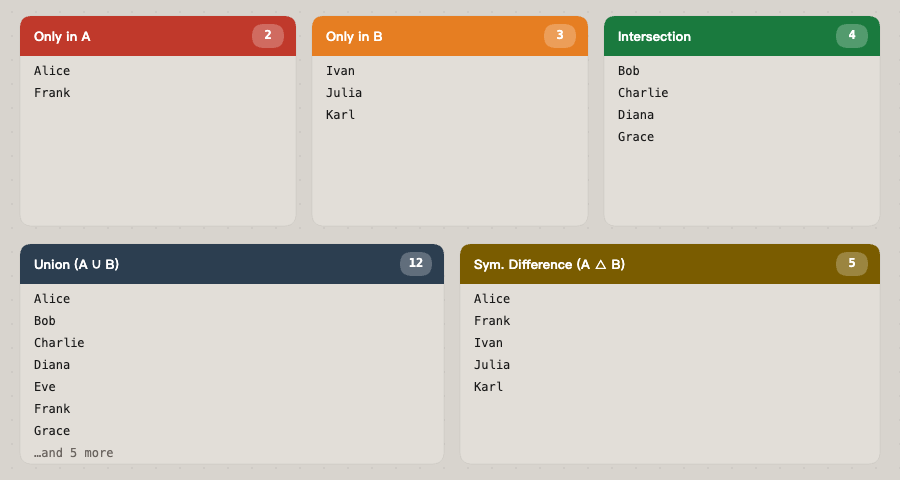
When you compare two lists, you get five result panels. Each one answers a different question:
Only in A
Items that exist in List A but not in List B.
When this matters: Finding subscribers who churned, products removed from inventory, permissions revoked since last audit.
Only in B
Items that exist in List B but not in List A.
When this matters: Spotting new entries, detecting unauthorized additions, finding records that appeared in the target system but not the source.
Intersection (A ∩ B)
Items that appear in both lists.
When this matters: Confirming which records synced correctly, identifying overlap between two mailing lists before a merge, verifying matching data between systems.
Union (A ∪ B)
Every unique item from both lists combined, with duplicates removed.
When this matters: Creating a merged master list, getting a complete inventory across two sources, building a deduplicated combined dataset.
Symmetric Difference (A △ B)
Items that appear in exactly one list — everything that's different between them. It's the opposite of intersection.
When this matters: A quick "what changed?" view. If two lists should be identical, symmetric difference shows you every discrepancy at once.
Step 4: Clean Up and Export
Each result panel gives you tools to work with the output:
- Copy — one click to clipboard, ready to paste anywhere
- Download as .txt — plain text, one item per line
- Download as .xlsx — opens directly in Excel or Google Sheets
- Sort A–Z — alphabetical ordering for easier scanning
- Trim & Deduplicate — clean up the result in-place
- Edit inline — click any result to modify it directly before exporting

When You Need to Compare Two Lists
Reconciling Two Data Exports
You exported users from your CRM and your email platform. They should match, but you suspect drift. Paste both lists, check the Symmetric Difference — that's your complete mismatch report. Zero formulas, zero pivot tables.
Deduplicating Before a Campaign
You have a list of existing customers and a list of leads. Before emailing, paste both and check Only in B — those are the leads who aren't already customers. No risk of emailing current customers with an acquisition offer.
Auditing Access Permissions
Compare the list of employees who should have access against those who actually do. Only in A shows revoked access that wasn't removed. Only in B shows unauthorized access grants.
Comparing Instagram Followers
The tool includes a dedicated Instagram Followers Mode that parses Instagram's export format. Upload your followers and following lists to find who doesn't follow you back, or who you're not following back.

Checking Inventory Across Locations
Warehouse A's stock list vs. Warehouse B's. Intersection tells you what's available at both. Only in A and Only in B show exclusives. Union gives you the full catalog.
Compare Two Lists in a Spreadsheet?
You can compare two lists in Excel or Google Sheets. Here's the standard approach:
=IF(ISNA(VLOOKUP(A2, Sheet2!A:A, 1, FALSE)), "Missing", "Found")
It works. But consider what it actually takes:
- Put each list on a separate sheet
- Write and drag a VLOOKUP or COUNTIF formula
- Filter or sort to isolate the results
- Repeat in the other direction to get the reverse comparison
- Manually create the union and symmetric difference
For a quick one-off comparison, that's 5–10 minutes of setup. With Compare Lists, the same task takes about 10 seconds — and you get all five results at once.
Spreadsheets still make sense when you need to keep a record alongside other data, run ongoing comparisons with live data, or build reports. But when you just need to compare two lists and see the differences, a dedicated tool is faster.
Compare Two Lists from the Command Line?
Developers often reach for comm or diff:
comm -23 <(sort file1.txt) <(sort file2.txt)  # Only in file1
comm -13 <(sort file1.txt) <(sort file2.txt)  # Only in file2
comm -12 <(sort file1.txt) <(sort file2.txt)  # Common items
This is great for scripting and automation. But it requires pre-sorted files, doesn't handle case-insensitive matching without extra flags, and gives you raw terminal output — no export to Excel, no visual layout, no quick edits.
If you're building a pipeline, use the CLI. If you're a human staring at two lists, use the visual tool.
Edge Cases When You Compare Two Lists
Mixed Case
Turn off Case Sensitive (it's off by default). "[email protected]" and "[email protected]" will match.
Trailing Whitespace
Ignore Begin/End Spaces is on by default. Lines that look identical but have invisible trailing spaces will still match correctly.
Inconsistent Formatting
Use Text Replacement Rules to normalize data before comparison. If one list uses "United States" and the other uses "US", add a replacement rule to standardize them.
Duplicate Entries Within a List
Use the Trim & Deduplicate button on the input panels before comparing, or on the result panels after. The tool preserves duplicates by default so you can see them — but you can collapse them with one click.
CSV or Delimited Data
Don't manually split your data. Paste the raw CSV and click Split CSV — the tool detects commas, semicolons, colons, and tabs automatically.
Privacy and Security
All comparisons run entirely in your browser. No data is sent to any server, stored, or logged. You can verify this — the tool works even with your network disconnected.
This matters when you're comparing sensitive data: employee lists, financial records, customer emails, access logs. There's no account to create, no data retention policy to worry about, and no third-party processing.
Quick-Start Summary
- Go to compare-lists.org
- Paste or upload your two lists
- Adjust options if needed (case, spaces, replacement rules)
- Press Compare
- Read the five results — copy, download, or edit as needed
That's it. The fastest way to compare two lists online — no signup, no install, no formulas.